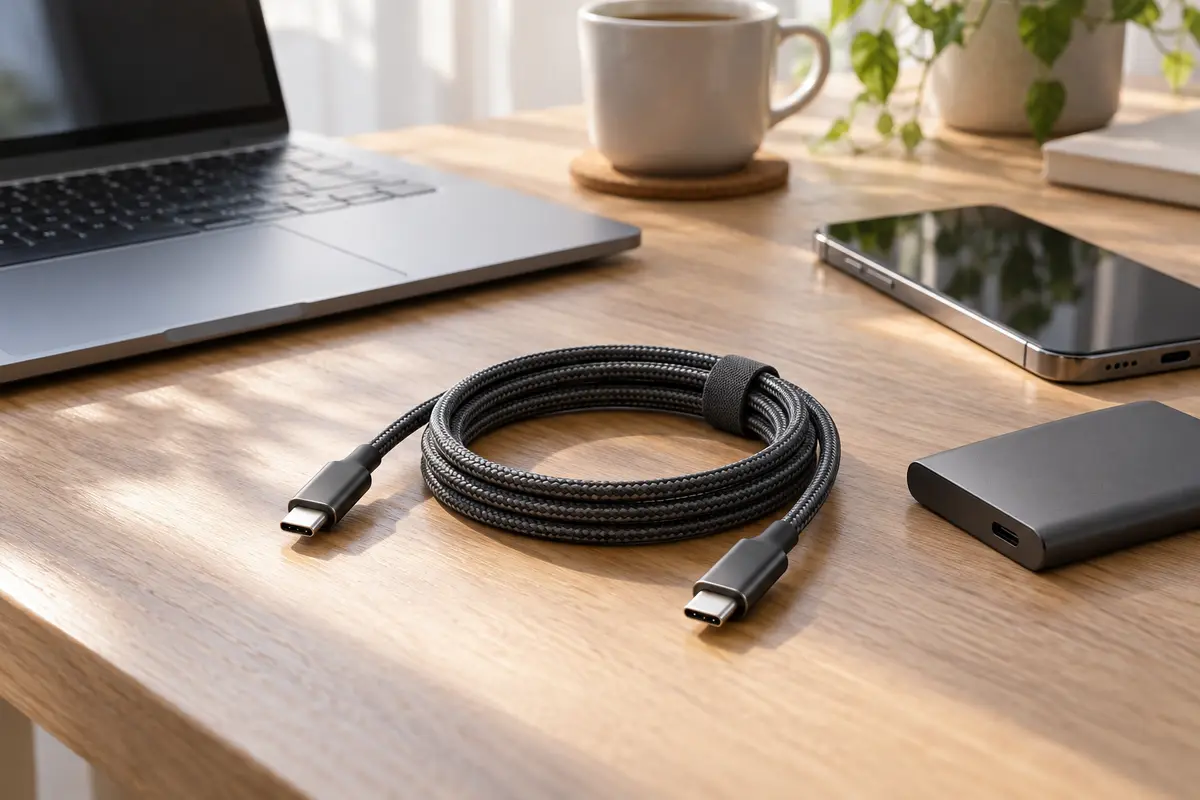
When shopping for a new cable, the largest number on the package tends to attract attention first. A 240W label sounds ample for charging a laptop, and it may also seem to promise fast file transfers. That second assumption can be wrong. Charging power and data-transfer speed are determined by different specifications.
A recent Electronic Times report on new Belkin mobile accessories mentioned a 240W USB-C cable alongside a 10Gbps USB-C hub. Although both are USB-C accessories, one headline number describes power and the other describes data speed. That distinction is where cable shopping often becomes confusing.
240W tells you how much charging power the cable can handle
USB Power Delivery 3.1 supports power levels up to 240W. A 240W label on the cable does not mean every connected device will charge at 240W, however. Actual charging power is limited to what the charger, cable and device all support. If the cable will mainly charge a phone, the largest 240W figure does not need to be the deciding factor.
Data speed must be checked separately. Apple's product description for its 240W USB-C Charge Cable, for example, specifies USB 2 data-transfer speeds. A Belkin support document lists 480Mbps for its 240W charging cable. Both are useful examples of why '240W' and 'fast file transfers' do not mean the same thing.
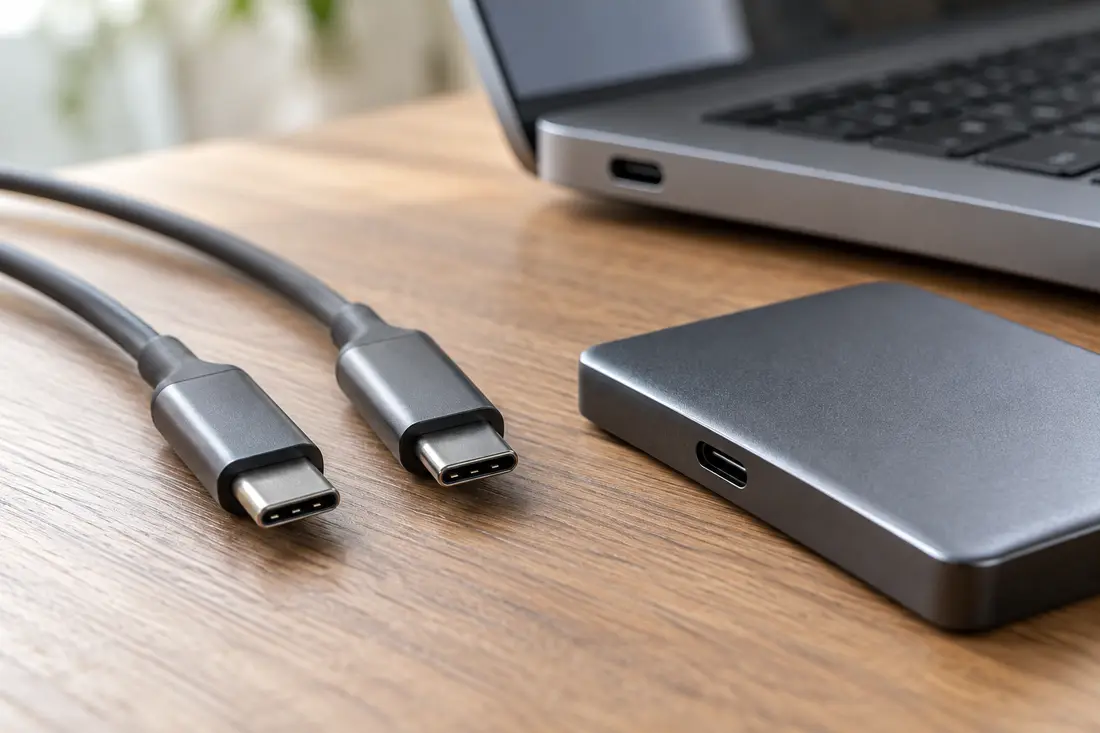
For an external SSD, look for a different number
If you often move large files to an external SSD, check the cable's data standard and rated speed first. USB-IF uses a logo system that distinguishes power capacity from data speed on certified USB-C cables. Where those logos appear, read charging figures such as 60W or 240W separately from data figures such as 5Gbps, 10Gbps or 20Gbps. This does not mean every cable on the market carries a certification logo.
Even with a speed-rated cable, the slowest part among the SSD, computer port and hub sets the practical transfer limit. Check the specifications of the connected port and storage device before replacing the cable. If a new cable made no noticeable difference, the bottleneck may be elsewhere in the connection.
Match the label to the job
The largest number on the package is not automatically the number that matters for your task. Start with watts when charging is the goal and gigabits per second when moving files. That simple distinction can save the most time when shopping for a USB-C cable.
Sources reviewed
The article was checked against the sources below. Image context and credits appear in each caption.